How to set up Wake-On-LAN on Windows 10/11
Wake-on-LAN allows you to remotely power on computers which have been shut down, but are still connected to mains power. It will also wake them up if they are in sleep or hibernate mode.
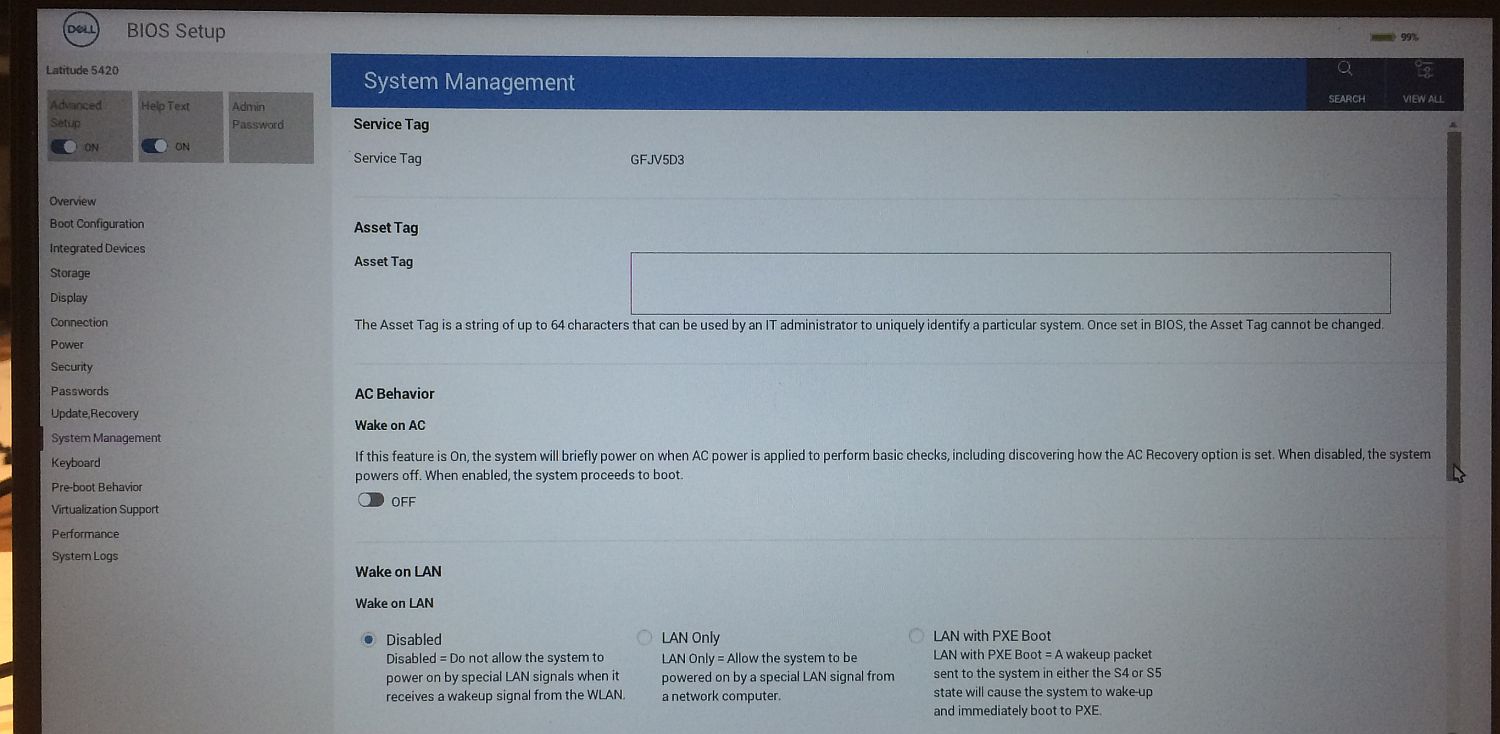
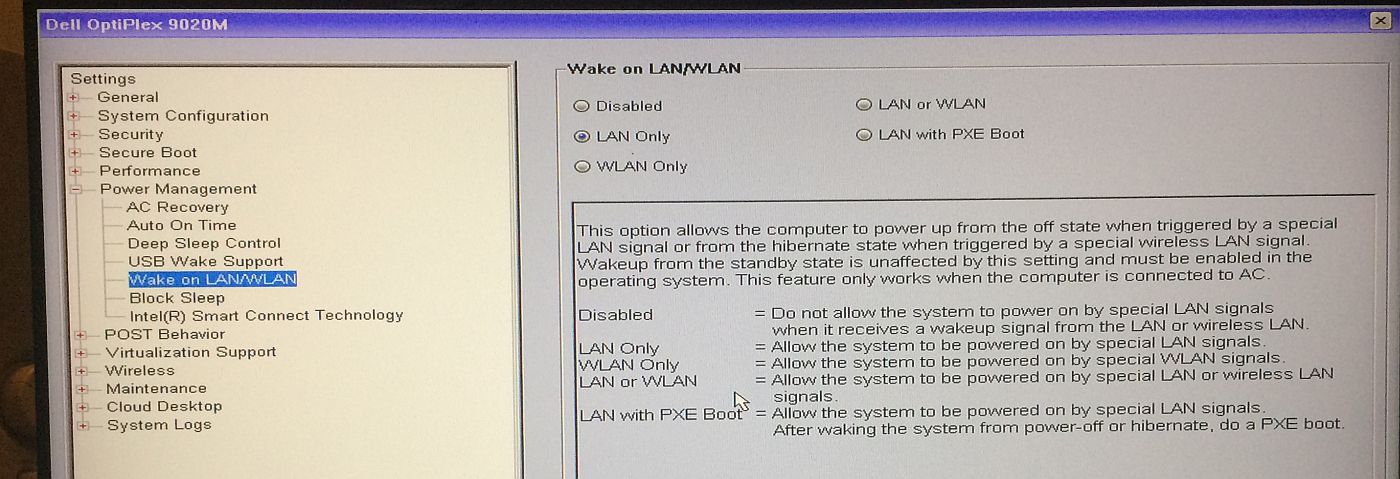
Step 1. go into the BIOS/Setup of your PC/laptop and find the Wake-On-LAN setting, and make sure it is enabled. See Appendix A below for some screenshots of where to find the Wake-On-LAN option in the BIOS of some Dell PCs.
Step 2. (may not be required?) - disable Fast Boot in the BIOS (also sometimes known as Intel Rapid Start) ; and/or disable ‘Fast Startup’ in the Windows Control Panel -> Power Options
Step 3. In Device Manager, find your LAN network device under ‘Network Adapters’ : right-click on it and choose Properties.
- In the Advanced tab, make sure Wake on Magic Packet is enabled
- in the Power Management tab, tick BOTH ‘Allow this device to wake..’ AND ‘Only allow a magic packet..’
Step 4. (may not be required) Open Group Policy Editor, and go to Computer Configuration -> Administrative Templates -> System -> Power Management -> Sleep Settings , and make sure that ‘Allow network connectivity during standby’ is enabled.
You need to do the previous steps on each PC which will is to be woken up. Then you need to choose a PC which you will use to send out the Magic wake-up packets which wake the other PCs, and install a software on it which can generate the magic packets. Note: this ‘master’ PC must be on the same network/subnet as the Windows PCs which are to be woken.
If you plan to use a Windows PC, you can use something like the ‘WakeMeonLAN’ software from nirsoft.net. ( https://www.nirsoft.net/utils/wake_on_lan.html ) This allows you to wake another PC using its MAC address, IP address or various other options.
If you plan to use a Linux PC to wake the Windows PCs, you can use the ’etherwake’ package.
e.g. on a Raspberry Pi :
$ sudo apt install etherwake
...
$ sudo etherwake -i eth0 AA:BB:CC:DD:ee:ff
Appendix A.
-
In an older Dell Optiplex BIOS, the Wake On LAN option is found under ‘Power Management’ :
-
In an newer Dell BIOS , the Wake On LAN option is found under ‘System Management’ :